
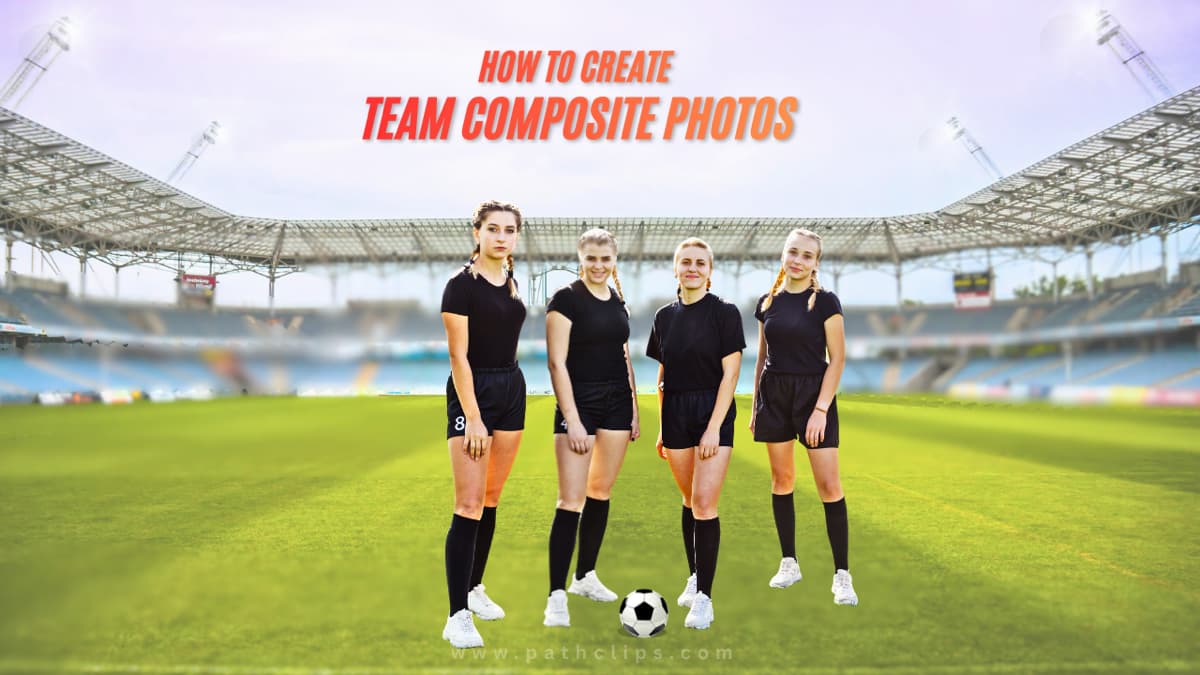
In many situations, it may not be easy to bring the whole team together for a group photo. This could be due to various factors, such as busy schedules, last-minute changes in plans, weather, or even location. So, at this time, team composite photos have become a smart and practical solution for sports teams, corporate groups, schools, and organizations. A team composite photo allows each member to be photographed individually and then professionally combined into one cohesive image. This gives more control over lighting, pose consistency, background design, and image quality. Furthermore, the final output appears organized, balanced, and very professional. In this photo editing tutorial, you will learn how to create a breathtaking team composite photo, which can be even more striking than a group photo.
What Is a Team Composite Photo?
Team composite photos are a smart and professional way to showcase your team without the challenges of a traditional group shoot. But what are composite photos exactly? They are images created by combining individual portraits into one seamless group photo. In addition, each person is photographed separately, and then their photos are carefully blended to create a unified image.
Why Should You Use Team Composite Photos?
High-quality product images are one of the biggest factors that influence buying decisions on Amazon. To create listings that attract clicks and drive sales, it’s essential to understand and follow Amazon’s image requirements carefully.
Using composite photos gives you the freedom to control every detail. You can choose a neutral background for a clean, professional look or a bright background to make your team stand out and feel more vibrant. With team composite photos, you get:
Consistency – Every portrait uses the same lighting, style, and background, resulting in a polished, cohesive final image.
Flexibility – Team members can be photographed at different times or locations, which is perfect for remote teams or busy schedules.
Ease of Updates – Adding new members is simple; just photograph them individually and integrate them into the existing composite.
Versatility – These photos work perfectly for websites, social media, presentations, and marketing materials, enhancing your brand image.
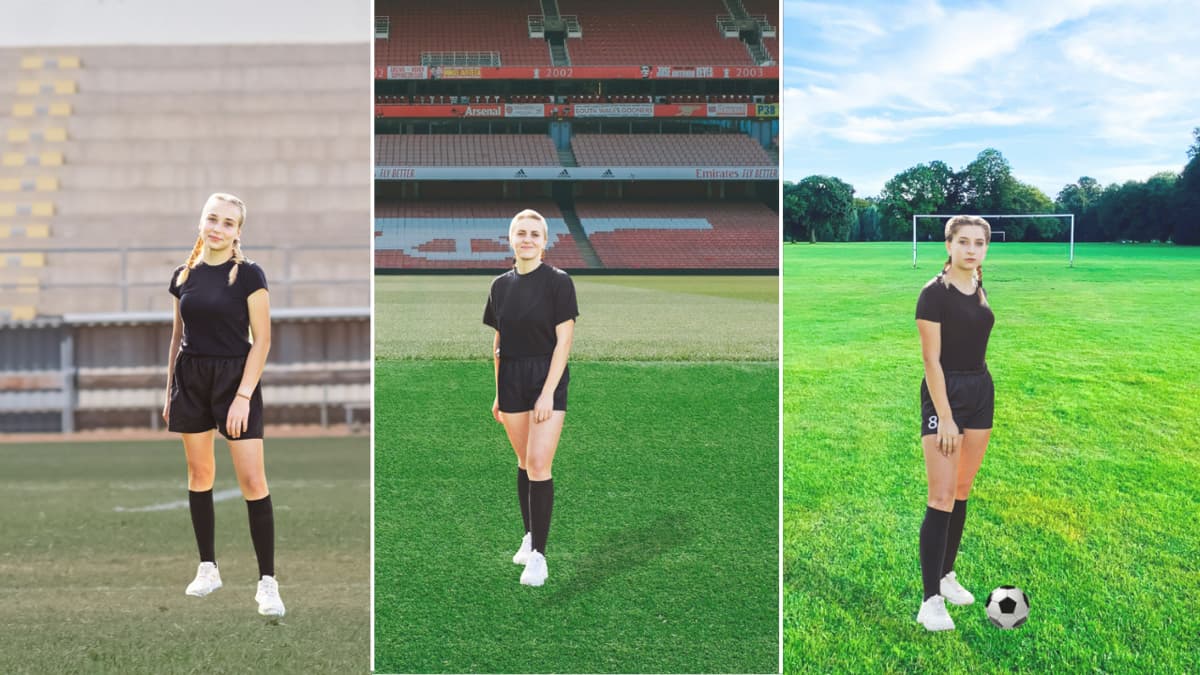
How to Capture Perfect Individual Photos for a Seamless Composite
To create flawless team composite photos, it all starts with capturing high-quality individual shots. Here’s how to capture each portrait perfectly:
Choose a Consistent Background
Select a neutral background for a clean, professional look or a bright background to give energy and vibrancy to your composite photos. Using the same background for every team member ensures the final image blends seamlessly.
Maintain Even Lighting
Using consistent lighting that helps to create a natural-looking composite. Use soft, uniform light to avoid harsh shadows or overexposed areas. This makes your team's composite photos appear realistic and polished.
Keep Camera Angle and Distance the Same
Shoot every team member from the same angle and at the same distance. In addition, this ensures consistent proportions, so no one looks out of scale when all portraits are merged.
Guide Poses and Expressions
Ask each person to maintain a similar posture and facial expression. Matching expressions helps the team's composite photo feel unified and harmonious.
Shoot in High Resolution
Always capture high-resolution images to make editing and blending easier. Moreover, it delivers a crisp composite photo and a professional finish.
Capture Multiple Shots
Take a few extra shots of each person. This gives you options to choose the best expression and pose for the final team composite photo.
How to Create a Team Composite Photo in Photoshop
When it comes to editing composite team photos, there are many software options, but Photoshop stands out for its precision and powerful tools.
In this guide, we’ll walk you step by step through the process of creating a flawless team composite photo in Photoshop.
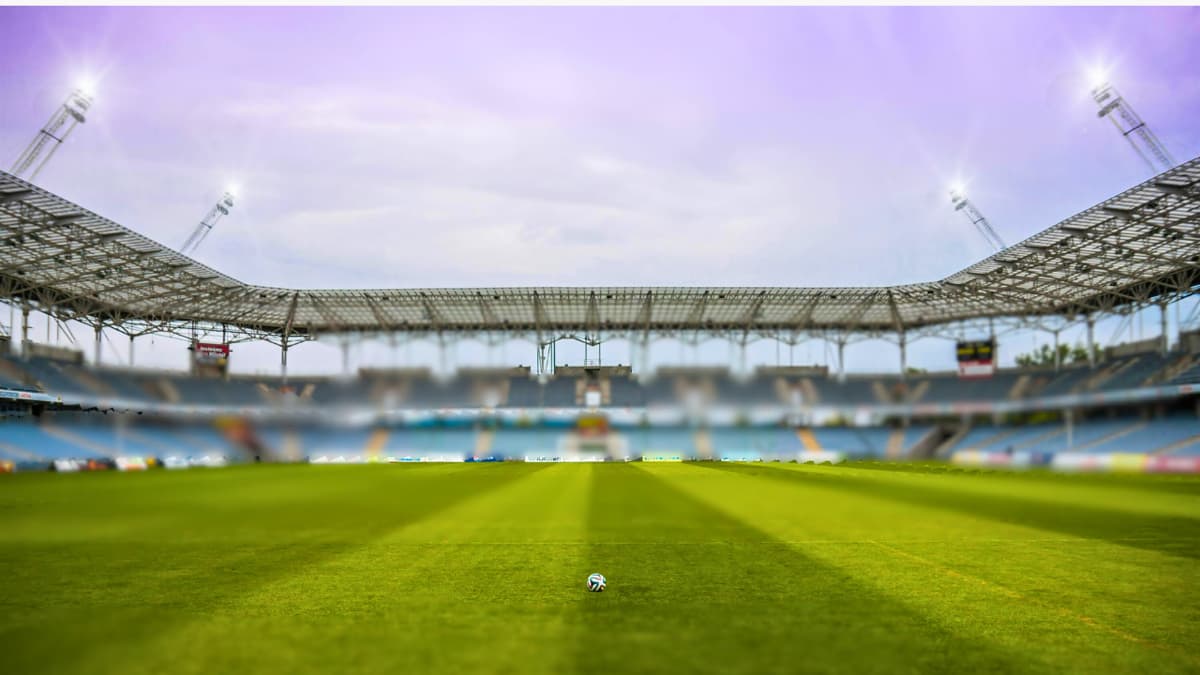
Before we begin forming our team, the first thing we need is a background. A good background will set the mood for our entire composition. In our case, we will be using a dramatic soccer field to set our bold and game-ready mood.
Remove the Background Using Photoshop
Open Photoshop & Select the Pen Tool
 Open Photoshop and pick the Pen Tool from the toolbar (Shortcut: P). This tool gives you full control of clean and sharp cutouts.
Outline the Subject Carefully
Click around your subject to create anchor points.
Adjust the curves carefully to match the natural shape. Take your time here — the more accurate your path, the more professional your composite photo will look.
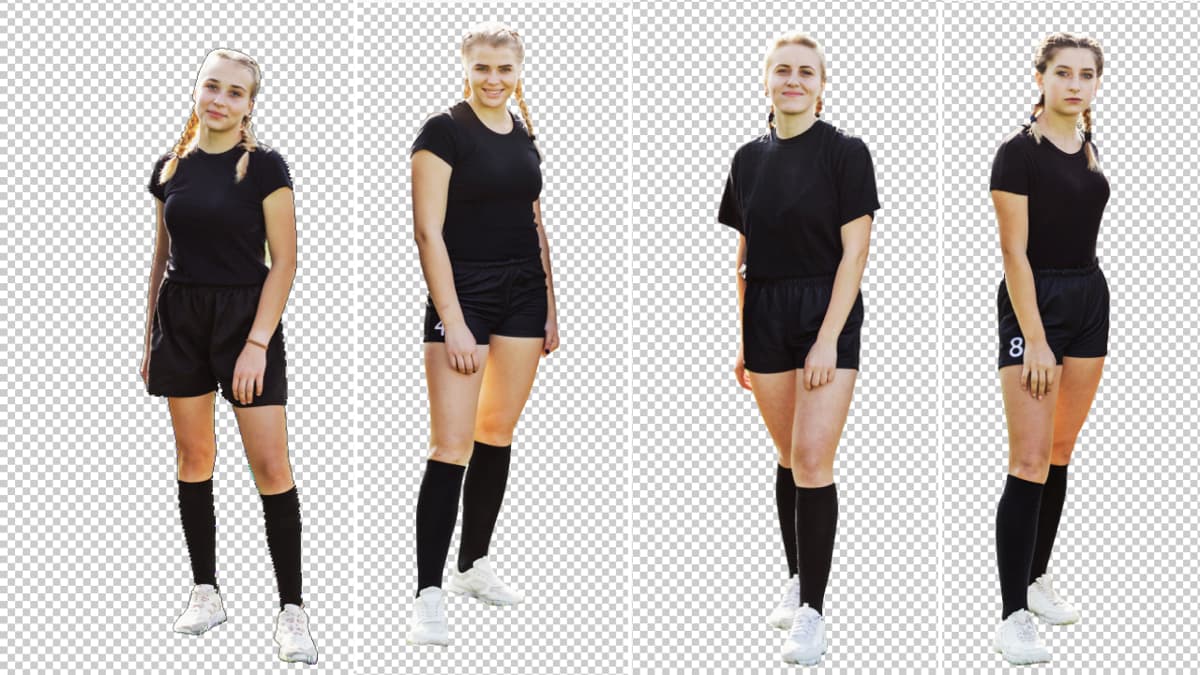
Turn the Path into a Selection
When you finish outlining, right-click inside the path and choose Make Selection. Now your path becomes an editable selection.
Copy to a New Layer
Press Ctrl + J (Windows) or Command + J (Mac) to place the subject on a new layer. Now it’s perfectly isolated and ready to move onto any background you choose.
Light, shadow, and color adjustments

Match the Lighting
To ensure consistency, you need to match the overall level and contrast of all players. To do this, you may need to fine-tune the highlights, mid-tones, and shadows, making sure all players are receiving a uniform lighting effect. To do this, use Curves (Ctrl + M / Command + M).
Add Realistic Shadows
Add a layer, and then using a soft Brush (B), paint the shadows of each player. Additionally, this will ensure that they adhere to the background without the floating effect.
Blend the Colors Seamlessly
 Using Color Balance (Ctrl + B / Command + B) or Hue/Saturation (Ctrl + U / Command + U), blend the skin tones and uniform colors with the background.
This is important to ensure that the whole composition is cohesive and professionally done.
Using Color Balance (Ctrl + B / Command + B) or Hue/Saturation (Ctrl + U / Command + U), blend the skin tones and uniform colors with the background.
This is important to ensure that the whole composition is cohesive and professionally done.
Final Touches and Exporting
Before you finish, zoom in a bit to make sure all the small details look good. After you're satisfied with how everything looks, go to File > Export > Save for Web, or use File > Save As to export your image as a JPEG or PNG file. Your composite image is now ready to share.
Conclusion
Polished team composite photos may seem intimidating initially, but patient, careful editing lets anyone produce impressive work. From capturing clear individual portraits to properly framing and matching lighting and color, every little detail plays a vital role in this type of photo editing technique. Whether you’re looking for a neutral background for a corporate theme or a bold background for a more vibrant theme, well-crafted composite photos can definitely take your brand image to the next level. For accurate clipping path, background removal, and high-quality team composite photo editing, PathClips provides reliable and professional image editing solutions.
